This page describes the mistake I’ve done with git. First of all : read the manual and the howto, as usual this is the first step to go !
Some interesting documentation includes :
Customizing your repository
git config user.name "Your Name"git config user.email "your@mail.com"
To check modification:
git config --list
To do global modification, that will be used for all repositories, just add the --global to the commands.
Working on your branch
- create the branch :
git checkout -f -b my_branch master - work
- add modified files to commit list :
git-update-index $FILE - commit :
git commit - diff :
git diff master..my_branch
Sending your work
First of all, read the docs about code formatting. To send a patch, use git format-patch:
git format-patch -o /tmp/ --signoff master..my_branch
It creates a patch for each commit in the /tmp/ directory. For explanation about signoff, read this page.
Apply work from other
To apply a patch send from git tool simply save the mail and do :
git applymbox /tmp/mbox ~/.signoff
Here, ~/.signoff is a file containing my signed-off-by line.
Update branch
Switch to master to update it first :
git checkout -f master
git pull
To only update master :
git pull git://git.kernel.org/pub/scm/linux/kernel/git/torvalds/linux-2.6.git master
Switch back to your branch :
git checkout -f your_branch
git pull
Conflicts
In case there’s a conflict you have to edit the bad file by hand, solve the issue and do git update-index on file before doing a git commit. If a pull or a merge fail you can do git reset --hard to clean your tree.
Work with a private repository
Fetching and pushing your work
To fetch your tree from a distant computer:
git clone ssh://users@server/home/users/linux-2.6/ mydirectory
To push your local commit to the distant tree:
git push ssh://users@server/home/users/linux-2.6/ mybranch
If remote branch is set and if you want to publish only one branch (let’s say master for example), you can run something like:
git push origin master
To push till a given commit to remote branch master run:
git push origin 58e654e1deda9d230dfb1d64bec773233a19ef84:master
If you want to delete a branch you’ve pushed, just push nothing on it. The following command destroy remote misc-august-v2:
git push home :misc-august-v2
Merging some branch inside yours
For example if you are working on Linus tree and want to work on 2.6.X.Y (like 2.6.19.4), you need to pull a branch inside your tre:
git pull git://git.kernel.org/pub/scm/linux/kernel/git/stable/linux-2.6.19.y.git
Tagging
The following commands will create and push a tag to your repository:
git tag -s mytag
git push --tags ssh://users@server/home/users/linux-2.6/
If you want to find when a commit has been added relatively to the tags, you can do:
$ git tag --contains fdb694a01f1fcd30fd16d8aa290c34699fe98a17
v3.6-rc1
It will issue the list of tags containing this patch.
Creating an archive
To create a tar archive for publication:
git archive --format=tar --prefix=nufw-2.4.0-rc1/ HEAD>/tmp/nufw-2.4.0-rc1.tar
To archive only a sub-directory, one can use something like:
git archive --format=tar HEAD rule_generation/>/tmp/rule_server_v2.tar
Sending patches by mail
Suppose you’ve got a lot of commit against a project (here ulogd2, official branch is git-svn) and that you wan to send your patchset to the Mailling list devel@netfilter.org.
To do so, just open a shell at the root of the git directory and use:
git format-patch --stat -p --raw --signoff  --subject-prefix="ULOGD PATCH" -o /tmp/ulogd2/ -n git-svn
git send-email --compose --no-chain-reply-to --to devel@netfilter.org /tmp/ulogd2/
First command will create a serie of mail from patches in /tmp/ulogd2/ with statistic report and second will start your editor to compose an introduction mail to the patchset.
To avoid awful threaded mail series, one can use :
git config sendemail.chainreplyto false
Applying patches from mail
Just save mail to an mbox and run:
git apply-mbox MBOX
Please note that it will apply the modification it the patch apply without any warning (or hunk). To apply the patch even if there is some hunks, just run:
git apply-mbox -m MBOX
To transfer patches from a repository to another, one could use git-format-patch on system with modification followed by git-am on target repository.
Merging patches
When git am fails to cleanly apply It will ask you to apply it yourself, to git add the file and to run git am --resolved.
In fact, git am can help you a lot. When the call to git am for a patch fails, simply run :
git am --3way
Il will merge the file that can be automatically merge. Some files may be marked with CONFLICT and in this case, edit them to do a manual merge, and once they are fixed and run
git add $FILES_IN_CONFLICT
git am --resolved
Fixing work
Reverting some work
Let’s you’ve coded too late and that all your commits need to go to the trash. You can then use:
git reset --hard COMMITID
This will revert to the state the source after COMMITID.
Modifying commit
This time your work is correct but you are not happy with your commit. To fix this, you can run:
git reset COMMITID
and commit your work in the way you should have done before.
Modifying commits
The more powerful way to do this kind of stuff is to use git rebase --interactive. With that command, you can modify, reorder suppress commits from your branch. More on merging multiple commits.
Misc tools and tips
Enhanced shell prompt
One specificity of git over something lke subversion is that all your branch stay in the same directory.
Thanks to the git completion extensions available in git-core, you can enhance your shell prompt to display the name of the branch you are working on. For example, if you set:
PS1='\u@\h:\w$(__git_ps1 " (%s)") \$ '
you can have a prompt displaying:
eric@ice-age:~/netfilter/git/ulogd2 (nohash)$
Zsh lover can found a similar tips here.
Colorized diff
git diff has a –color option to display a colorized diff. It is possible to have such a diff by default by using:
git config --global diff.color true
More colors
It is also possible to colorize status and branch:
git config --global color.diff auto
git config --global color.status auto
git config --global color.branch auto
Here auto is used to avoid displaying colors in non-terminal mode.
Doing a quick tree review
When you get back on a git tree after some times, you often want to have a quick look on what was recently done. git log is here for that. The raw version is correct but adding -p will show you the patches. For example, if you want to see the difference between your master and the distant master, you can use:
git log -p origin/master..master
git log has support for time period via –since and –until keyword. For example, to see the work done since one week:
git log --since='$(date --date="1 week ago")'
You can also check what has done a specific author to your beloved files:
git log -p --author="Victor Julien" src/source-nfq.c
To find all commit which contains a word or an expression (here ‘workers’) in all branches of a project, one can use:
git log --all --grep workers
Sometimes after a rebase, it is good to check that patches on top on the base branch are not messed up. To do that you can list all commit patches from origin to HEAD:
git log origin/master..HEAD --reverse -p --stat
Here the –reverse is the key point. The –stat option only adds the statistics on change to the output.
Private repository for backup
When doing a long work on some code, you may fill the need to backup your work in progress on a private repository. To do so, I use gitolite on one of my server. To send easily my work on my server, I declare a remote branch:
git remote add home gitolite@git.example.com:suricata.git
Pushing update to that repository is then easy. For example, to backup my work on the af_packet branch:
git push home af_packet
To synchronize an other computer with this work, you can first add a remote branch with the same command and after that you just have to run git pull:
git pull --rebase home af_packet
Create branch from remote
When your git tree is synchronized with the tree of the lead developer, you may need to work over the branch of a other developer. To do so, you can do the following:
git remote add net-next git://git.kernel.org/pub/scm/linux/kernel/git/davem/net-next.git
git fetch net-next
git checkout -b my-net-next remotes/net-next/master
Getting more information on your branch
Let’s say you have a consequent number of branches and that you want to know which are the last branches you was working on. A solution is to use for-each-ref, this command iter on each references and run a command or a print operation on it. One of the most simple uses is the following:
$ git for-each-ref --count=3 --sort='-authordate' \
  --format="%(refname) | %(subject) | %(authordate)" \
  refs/heads
refs/heads/afpacket-100-full | af-packet: fix reconnection on netdown error. | Wed Nov 9 18:30:01 2011 +0100
refs/heads/bug296-v1.0 | tls app layer: add missing free | Wed Nov 9 15:55:43 2011 +0100
refs/heads/bug296 | tls app layer: add missing free | Wed Nov 9 15:45:49 2011 +0100
For the 3 (--count=3) first local branches (ref/heads) sorted by date of commit descending (--sort='-authordate' with the minus in front of authordate for the descending), display the name of the branch, the description of last commit (--format). A more advanced example can be found here.
If you are using the rebase command, the author date won’t be modified and you will have a bad ordering. This is why it is better to use ‘commiterdate’ instead:
$ git for-each-ref --count=3 --sort='-committerdate' \
  --format="%(refname) | %(subject) | %(committerdate)" \
  refs/heads
refs/heads/af-packet-counter | Counter strike | Thu Jun 14 17:19:59 2012 +0200
refs/heads/bug440-v1.0 | af-packet: add support for BPF filter. | Mon Jun 11 23:38:19 2012 +0200
Checking that all commits in a branch build
Sometime, you need to check that all the commits in a branch are building correctly. For example, when a rebase has been done, it is possible you or diff has made a mistake during the operation. The building operation can be run against all commits of the current branch with the following one-liner (splitted here for more readability):
for COMMIT in $(git log --reverse --format=format:%H origin/master..HEAD); do
    git checkout ${COMMIT} ;
    make -j8 1>/dev/null || { echo "Commit $COMMIT don't build";  break; }
done
The idea is trivial, we build the list of commits with git log using a simple format string (to get only the hash). We add the reverse option to start from the oldest commit.
For each commit, we checkout and run the build command. If the build fails, we exit from the loop.
The result is a directory with the non-building code. Thus, don’t forget to get back to the original branch ORIG_BRANCH by running a git checkout ORIG_BRANCH.
Using git in VIM
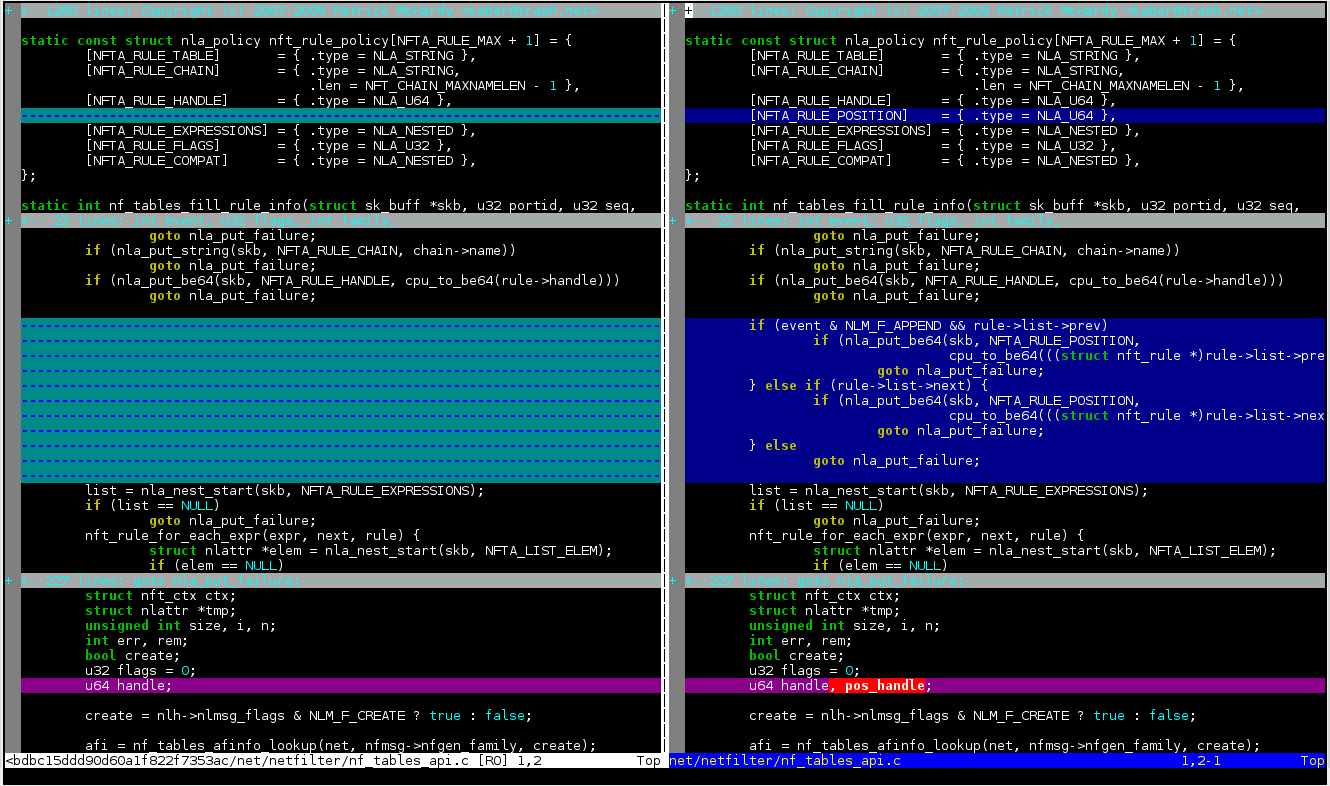
I highly recommend to use fugitive which is a great wrapper to Git. Once installed, you can run command like
:Gdiff HEAD^
This will modify your vim to display a vimdiff of the open file compared to previously commited version (HEAD^). For those not used to vimdiff, this a mode where a two versions of a file are displayed in a vertical split. The following screenshot is an example:
More to come …
One hell of a list.. Thanks a million!!
Could you say a bit more about applying patches from mail? My specific question that led me to your article is: If someone sent a few mails with a cover letter, do I include all the e-mails (including the cover letter) in one mbox file? Or do I break it up into different mbox files, etc.?
Thanks!
Hello
Save all patches to a unique mbox and apply it with git am.
I’ve never tested with cover letter inside mbox. It is useless but it could work too.
Florida Online dating is the way to go about it where people have made great traffic in different sites to meet their soul mates
and this has proved to be the best and most effective way of succeeding in this adventure.
You sign up for adult dating web pages like BBPeople – Meet,
Asian – Euro, and Plentyof – Fish, when in fact you do not really
want to. However, it is not as easy as what other dating
articles have led you to believe.
Years of service give you a perception of credibility and experience.
are popular destinations and a lot of tourists visit these places.
Individuals that need a ride from Salisbury to Gatwick should consider taking a taxi.
Silk carpets are the most expensive carpets we make in India.
You shall get the clothes washed and ironed and nicely folded.
Take note in no way to soak the appliance in water considering there is a hazard of
electrical shock.